
This is an old revision of the document!
Table of Contents
Upsells On The Checkout
Beginning in version 2.0 we've added some basic upsell functionality into the checkout. It allows you to quickly show a modal window to customers on the checkout providing opportunities for them to add additional products to their cart prior to checkout.
The upsell modal window is displayed on page load of the checkout, based on conditions you set within your custom Twig logic.
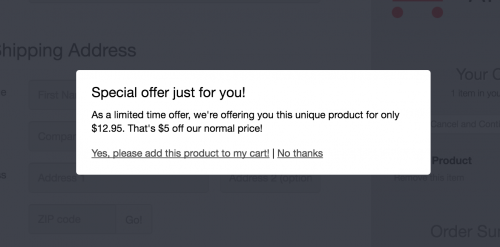
Step 1: Add custom Twig to your checkout
To create the modal window contents, you overwrite a Twig block within your checkout template with your own HTML. When the modal functionality is enabled for your store, the actual modal window will only display to the customer if the block has some HTML elements contained within it. This means that if the block is empty, then it won't be shown to the customer. This approach is used to allow you to conditionally show the modal to the customer based on your own conditions - such as based on what products are in the cart.
Within the “Checkout” template page in your store's FoxyCart administration - set it to use a “Custom Template”, and look for the following code in the text area:
{% embed 'checkout.inc.twig' %}
{% endembed %}
It is within these two lines that we'll be pasting our custom block. If you already have some other code within the embed tags, add this additional block right before the closing {% endembed %} tag. Your own code will be overwriting the upsell_modal block - and as an initial start, will look like this:
{% embed 'checkout.inc.twig' %}
{% block upsell_modal %}

{% endblock %}
{% endembed %}
Inside this block tag you'll place your own custom logic and HTML. The most common use case is that of offering an link or form to add an extra product into the customers cart, unless they already have the product in their cart. That approach could look simply like this:
{% block upsell_modal %}
    {% set hasUpsell = false %}
    {% for item in items %}
        {% if item.code == "my-upsell" %}
            {% set hasUpsell = true %}
        {% endif %}
    {% endfor %}
    {% if not hasUpsell %}
        <h2>Special offer just for you!</h2>
        <p>As a limited time offer, we're offering you this unique product for only $12.95. That's $5 off our normal price!</p>
        <p><a href='https://{{ config.store_domain }}/cart?name=Upsell+Product&code=my-upsell&price=12.95'>Yes, please add this product to my cart!</a> | <a data-remodal-action="cancel">No thanks</a></p>
    {% endif %}
{% endblock %}
A few things happens within this code.
- Firstly, we set a variable called
hasUpsellto false - Next, we loop through the items in the cart and look for any products with a code of
my-upsell. If one is present, we set thehasUpsellvariable to false. - Finally, if
hasUpsellis still false, meaning the customer hasn't previously purchased the upsell - we display some HTML tempting the customer to our upsell product. If they have, andhasUpsellis true - we don't output any HTML, leaving the block empty and so the modal won't display at all.
Important Notes
- If your store has link and form encryption enabled, any add to carts you include within the modal will also need to be encrypted. Review the wiki page for the link/form encryption for details on doing that.
- Any images that you include within your markup need to be served securely. If you're not already using a remote custom template that you're caching, you can have the image cached manually as detailed here.
Step 2: Enable Upsells
The next step is to enable this functionality within your FoxyCart checkout. To do that, you need to make use of the custom values configuration option. Within your store's FoxyCart administration - navigate to the “Configuration” page found under “TEMPLATES”. Within the first group of options, enable the “Set your own custom values” option, and paste the following into the text area that appears:
{
  "upsell": {
    "enabled": true
  }
}
If you already have some custom JSON set in the custom value text area, you will need to merge this JSON into your own, ensuring that upsell is included within the first level of the JSON object.
If you set enabled to false in this code - it will disable the upsell functionality from operating on your cart. Alternatively you can also simply remove the above code from the custom values textarea and save your configuration to turn off the upsell functionality.
Step 3: Taking it further
You have complete control over what logic the Twig includes, and what HTML is output within the modal window. As with any FoxyCart templates, you can also include any custom styles you need - meaning you can create very complex and beautiful upsell displays for your store.
Some examples of more advanced set ups you could take:
* Use a custom session attribute to track if a customer has already added or declined an upsell product. This could be done by sending a JSONP request off to the cart on the dismiss link being clicked, and by including the custom attribute in the add to cart. You could then check for that custom attribute in your twig logic to prevent the modal from showing again.
* On page load of the checkout, you could send off a JSONP request setting a custom session attribute of the current date/time. You could then check against that variable when deciding whether to show the upsell or not, and include a countdown timer within the modal showing how much longer the offer would be valid for.
* If you wanted to also trigger the upsell modal off of other events on the checkout - such as removing a product from their cart or clicking a button or link - it can be shown by calling FC.checkout.showUpsellModal(). This function will re-render the upsell block and display if it's enabled and has at least one HTML element within the block to display.