
This is an old revision of the document!
Table of Contents
- type:
- gateway
- name:
- PayPal Plus
- countrie:
- DE
- support-added:
- 2.0.0
- gateway:
- https://www.paypal.com/de/webapps/mpp/paypal-plus
PayPal Plus
 FoxyCart is proud to be a PayPal Gold Partner.
Setting Up PayPal Plus for FoxyCart
PayPal Plus requires a fully verified PayPal merchant account and goes through a vetting process. To apply for PayPal Plus go to www.paypal.de/paypal-plus
Disable Editable Cart and Coupons on Checkout
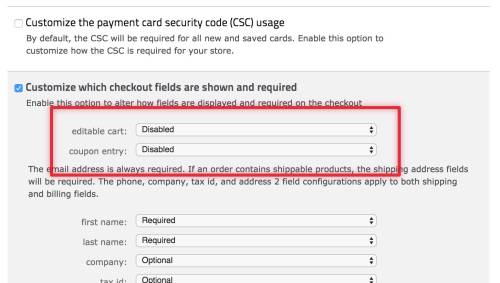
Because of how the PayPal Plus flow works, you need to disable the ability to edit the cart or add a coupon on the checkout when using PayPal Plus. To do that, navigate to the “configuration” section of your store's FoxyCart administration, and look for the “Customize which checkout fields are shown and required” option. Enable this and set the “editable cart” and “coupon entry” options to disabled, and save the page.
Testing
Obtaining a Test Account
If you don't already have a PayPal developer account, follow the instructions on this page for creating one: https://developer.paypal.com/docs/classic/lifecycle/sb_create-accounts/
- Head to https://developer.paypal.com/developer/accounts/ and log in with your PayPal developer account
- From the Dashboard, look for the “REST API apps” section, and click the “Create App” button.
- On the following screen, give you app a name and select a Sandbox developer account. Note that this developer account needs to be a German developer account (it should show “(DE)” at the end of the listing in the dropdown). If you don't have one, head to the “Accounts” section under “Sandbox” in the left hand navigation and create a business account, selecting Germany as the country.

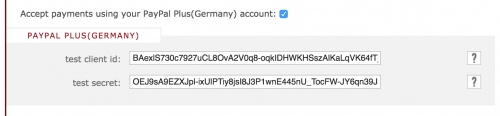
- After creating the app, you'll be taken to a summary screen. Here you'll receive your test client ID and secret, which you will need to set in your FoxyCart store's payment settings for PayPal Plus when on test payment servers. By default, the secret will be hidden from view, simply click the “Show” link to see it.
 \\
\\
- Below the credentials, you'll see a panel for webhooks. These are needed to communicate details back to FoxyCart from your PayPal account. Click the button to “Add Webhook”. Within the text area that appears - you'll need to enter the IPN URL for your FoxyCart store. This will look like
https://YOUR-STORE.foxycart.com/ipn.php. If your FoxyCart store wasexample.foxycart.com, then the webhook URL. would behttps://example.foxycart.com/ipn.php. If you have a custom subdomain for your FoxyCart store likesecure.yourstore.com, the webhook URL would behttps://secure.yourstore.com/ipn.php. Select “All Events” for the Event types.
At this point - you should be able to make test purchases on your store, and as needed when paying through the PayPal Plus interface on the checkout, use test buyer accounts created within the PayPal developer portal. If you don't have any, you can create them from the “Accounts” section.
Troubleshooting & Interpreting Response Codes
Contact PayPal for info. Know more? Feel free to edit this page with info.
Important Notes and Caveats
User Notes and Experiences
If you have tips, experience, or helpful notes related to this gateway that would benefit others, please add them below, including your name and the date. We reserve the right to edit or remove comments that don't add value to this page.